





- Posted by:
- Posted on:
- Category:
BeamNG.driveBeamNG.drive - System:
Unknown - Price:
USD 0
Exit Codes
Here’s a short list of common exit codes:
0x00000001
This is a common error that may be caused by a number of things such as drivers, mods, or incompatible software.
Please check these articles for more information:
You can also try our troubleshooter:
https://beamng.com/game/support/portal/support-tools/troubleshooter/
Or contact our Support team:
0xC0000139 – STATUS_ENTRYPOINT_NOT_FOUND
One of the reasons you might see this, is when you’re using an unsupported version of Windows (such as Windows XP, 7, etc).
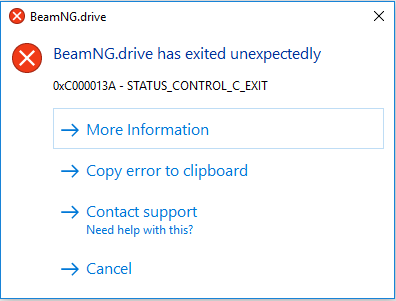
0xC000013A – STATUS_CONTROL_C_EXIT
This usually happens if you close the console window or press CTRL+C.
0xC0000005 – STATUS_ACCESS_VIOLATION
Usually means that it crashed due to a bug or the game exceeded the allocated budget
0xC0000135 – STATUS_DLL_NOT_FOUND
The OS is unable to load a file that is required to run the game. A missing DLL may belong to the game, the OS or one of the required components (DirectX e.g.).
Please try to:
0xE0000002 – BNGBase::EXIT_ERR_INVALID_ROOT_PATH
The game or launcher could not mount the game path.
Possible solutions:
- Check the Security Properties of the game folder and check that you have
Full controlticked - Try to start the game/launcher with Administrator Rights
- Check the path of the game does have other chars than ascii
0xE0000003 – BNGBase::EXIT_ERR_INVALID_USER_PATH
The game or launcher could not mount the user path.
Possible solutions:
- Check the Security Properties of the user folder and check that you have
Full controlticked - Try to start the game/launcher with Administrator Rights
- Check the path of the user does have other chars than ascii
- Check the
startup.inifile in the game folder, if a UserPath is defined there them check it’s still valid
0xE0000004 – BNGBase::EXIT_ERR_USER_PATH_UNWRITABLE
The game is probably blocked by Windows Defender
Possible solutions:
- Move the user folder to a folder not protected by
Controlled folder access. Keep in mind that moving data with the launcher will fail, you need to move the data manually and un-tickMove data.
Or - Add BeamNG.Drive executables in the Allowed apps. Follow this
guide
You will need to add those executables : BeamNG.drive.exeBin64\BeamNG.drive.x64.exe
Firewall

0xFFFFFFFF
Looks like your Antivirus or 3rd party software block the game. Please add Game and User folders into the antivirus whitelist.
If you still cannot get it working, please contact our support:
http://www.beamng.com/contactus/
UI Errors
Unresponsive UI Process
This can happen for a number of reasons. A common reason is that incompatible software is present in your computer. Please
check this page for more info.
If that page doesn’t solve it, please contact our support:
http://www.beamng.com/contactus/
UI Loading
If upon game launch you are stuck on a black screen with the text UI Loading at the bottom, this could be caused by mods.
Please follow these instructions to resolve this issue:
- Make a backup of your
user folder (make a copy of its content)
- Delete everything in your user folder
- If you have third-party mods (not from the official repository), uninstall them according to their instructions.
If this does not address the issue, please create a support ticket at
Integrity Error
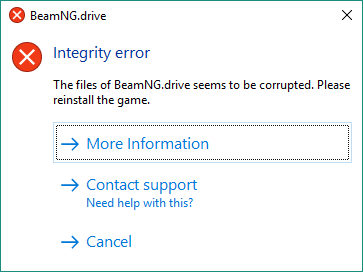
0xC000012f – STATUS_INVALID_IMAGE_NOT_MZ
Your game installation is broken.
Verify Integrity of Game Files or reinstall the game.
Unable to Start
1×44444448

ExeNotFound
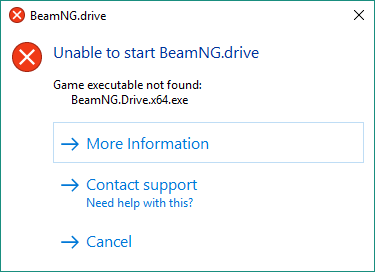
The launcher was not able to locate the game’s executable. Please reinstall the game.
0x000002E4

The launcher was not able to launch the game because it needed administrator rights.
Go to the games folder and open the folder /bin64/.
Right click on the game executable BeamNG.drive.x64.exe and click on Properties
In the compatibility tab untick the highlighted line.
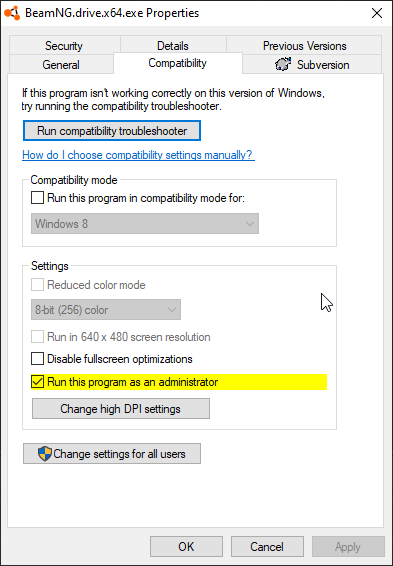
It’s not recommended to run the game in administrative mode.
If you are obliged to do so, you need to apply the same mode to the launcher executable.
0x3000004 – Failed to create user directory
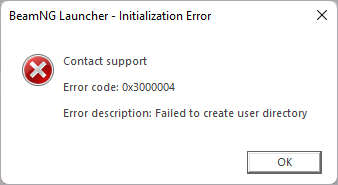
This could be caused by an overriding user folder path entry in the registry.
Please the the following steps:
- Press Win + R and type
regedit - In the window that will open navigate to
Computer\HKEY_CURRENT_USER\SOFTWARE\BeamNG\BeamNG.drive - Right click on
userpath_overrideand selectDelete - Restart your PC
- Launch Steam → Library → Right click on BeamNG.drive → Properties
- Make sure that
Launch Optionsfield in the General section is empty - Launch the game
Unsupported Windows Version
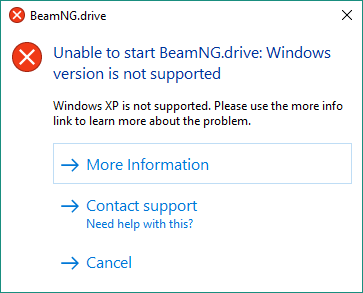
Your version of windows does not seem to be supported anymore
Try to install DirectX9 and use the old DX9 branch.
https://www.microsoft.com/en-us/download/details.aspx?id=8109
Support
You encountered an unknown exit code? Please report it as explained in
The easiest way is just to copy the error to clipboard and paste it in the support form after clicking on Contact support!
Last modified:
January 26, 2026
Was this article helpful?


