



Counter-Strike is one of the most popular first-person shooters in the world, and the ability to mod the game has made it even more enjoyable for millions of players. Mods can enhance your gameplay experience by adding new maps, skins, sounds, and game modes. Whether you are new to modding or a seasoned veteran, this guide will walk you through the steps to download, install, and manage mods for Counter-Strike, with easy-to-follow instructions. Let’s dive in!
Table of Contents
- Introduction
- How to Download Counter-Strike Mods
- How to Install Counter-Strike Mods
- How to Manage and Organize Mods in Counter-Strike
- Troubleshooting Counter-Strike Mods
- External Resources
- Conclusion
1. Introduction
Counter-Strike (CS) has been a cornerstone of the competitive gaming scene for years. The game’s vibrant modding community allows players to customize every aspect of the game, from skins to entire maps and game modes. Whether you’re looking to enhance the visuals, try new maps, or even add custom game modes, mods can give you endless ways to enjoy the game. This guide will take you step by step through downloading, installing, and managing mods for both Counter-Strike 1.6 and Counter-Strike: Global Offensive (CS:GO), ensuring that even beginners can follow along.
2. How to Download Counter-Strike Mods
Finding Trusted Modding Websites
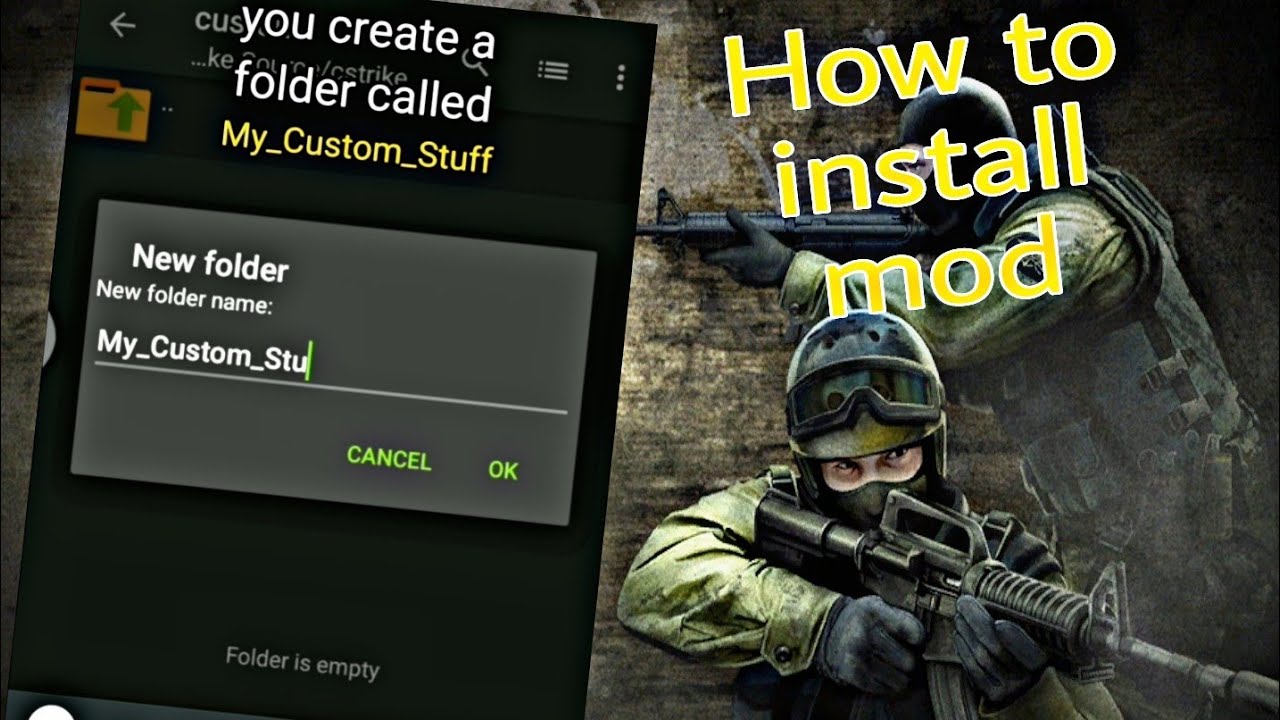
The first step in modding your Counter-Strike experience is downloading mods from trusted sources. Downloading from unreliable sites can lead to security risks such as viruses or corrupt files. Here are some of the best websites for downloading Counter-Strike mods:
- GameBanana – One of the largest repositories for Counter-Strike mods.
- Counter-Strike Official Site – Find official mods and maps.
- ModDB – A great platform for community-made Counter-Strike mods.
These sites offer various categories such as skins, maps, mods, sound packs, and even custom game modes. Browse through the available mods and ensure that the one you choose is compatible with your version of Counter-Strike.
Choosing Your Mod
When choosing a mod, make sure to check the mod’s description, installation instructions, and any dependencies it may require (such as specific versions of the game or other mods). For beginners, starting with simple mods like custom skins or maps is a good idea, as they are easier to install and won’t impact the core gameplay too much.
3. How to Install Counter-Strike Mods
Step 1: Locate Your Counter-Strike Installation Folder
Before you can install any mods, you need to locate your Counter-Strike installation folder. The path may vary depending on which version of Counter-Strike you’re playing and how you installed it. For Counter-Strike 1.6 or Counter-Strike: Global Offensive (CS:GO), the default paths are:
- For Counter-Strike 1.6 (Steam Version):
C:\Program Files (x86)\Steam\steamapps\common\Half-Life\cstrike - For Counter-Strike: Global Offensive:
C:\Program Files (x86)\Steam\steamapps\common\Counter-Strike Global Offensive
Once you’ve located your installation folder, open it. This is where you’ll place your mod files.
Step 2: Backup Your Files
It’s always a good practice to back up your game files before installing any mods. This ensures that you can restore your game to its original state if anything goes wrong. To back up your game files, simply copy the entire Counter-Strike directory to another location on your computer or an external drive.
Step 3: Install the Mod Files
The process of installing mods in Counter-Strike can vary depending on the type of mod you’re installing. Here’s how to install the most common types of mods:
- Custom Skins: If you’ve downloaded a skin mod, you’ll typically get a
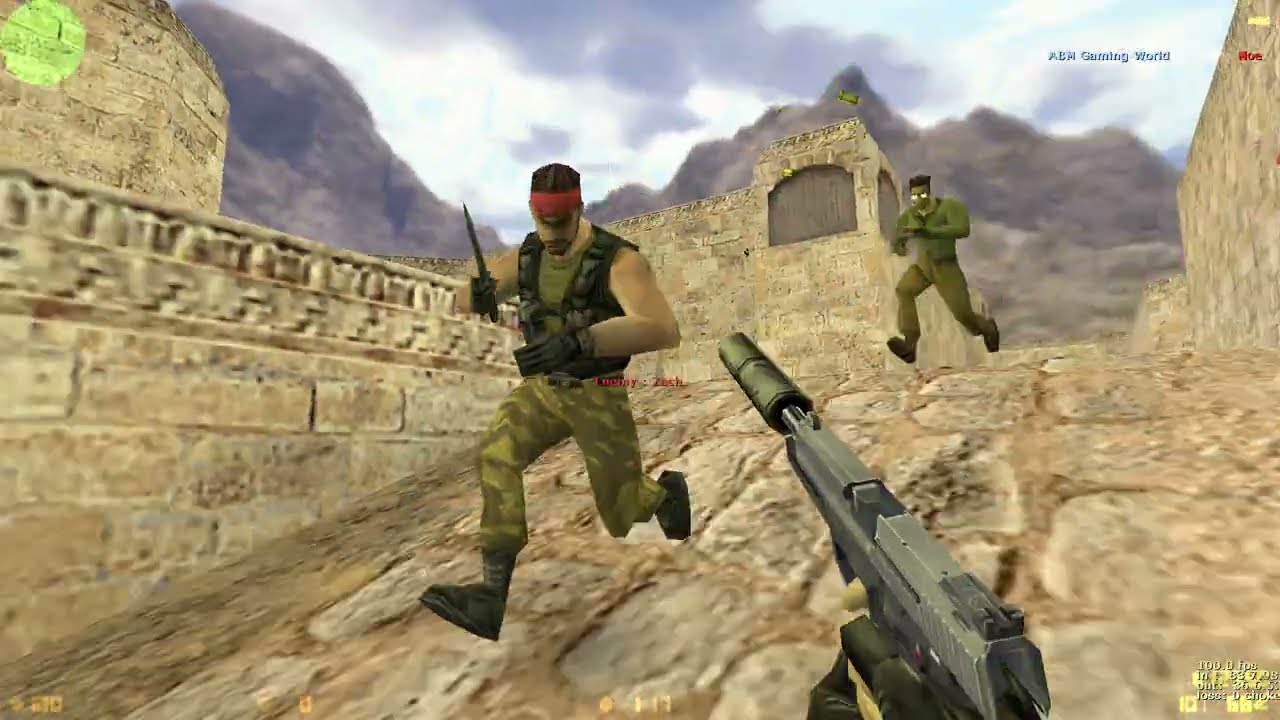
.zipor.rarfile. Extract the contents to the appropriate folder inside thecstrikeorcsgofolder (usually inmaterials,models, orscriptsdepending on the mod). - Maps: Custom maps are usually stored in the
mapsfolder. Extract the map files (usually.bsp) into themapsfolder located inside your installation directory. - Sound Packs: If you’re installing sound packs, extract the audio files into the
soundfolder in your installation directory. - Game Modes and Mod Files: For more complex mods like game modes or custom game files, extract them into the main Counter-Strike directory or follow the mod’s specific installation instructions.
Step 4: Enable the Mods
After installing the mod files in the correct folders, launch Counter-Strike. For custom skins and maps, they should be automatically available in the game. For game modes or server-side mods, you may need to enable them through the game’s settings or a server browser (if you are running a private server).
Step 5: Restart the Game
Some mods may require you to restart the game for the changes to take effect. If your new mod isn’t appearing, try closing the game and reopening it.
4. How to Manage and Organize Mods in Counter-Strike
As you continue adding mods, it can become difficult to manage them, especially if you’re dealing with multiple custom maps or skins. Here are a few tips for managing your Counter-Strike mods:
- Use a Mod Manager: While Counter-Strike doesn’t have an official mod manager, third-party mod managers like CSGO Mod Manager can help you organize and enable/disable mods quickly.
- Keep Your Mods Organized: Keep your mods organized by type (maps, skins, game modes) within their respective folders in the installation directory. This makes it easier to troubleshoot or uninstall mods later.
- Backup Your Mods: Always keep backups of your custom mods, especially custom skins and maps. If something goes wrong, you can easily restore them without losing progress.
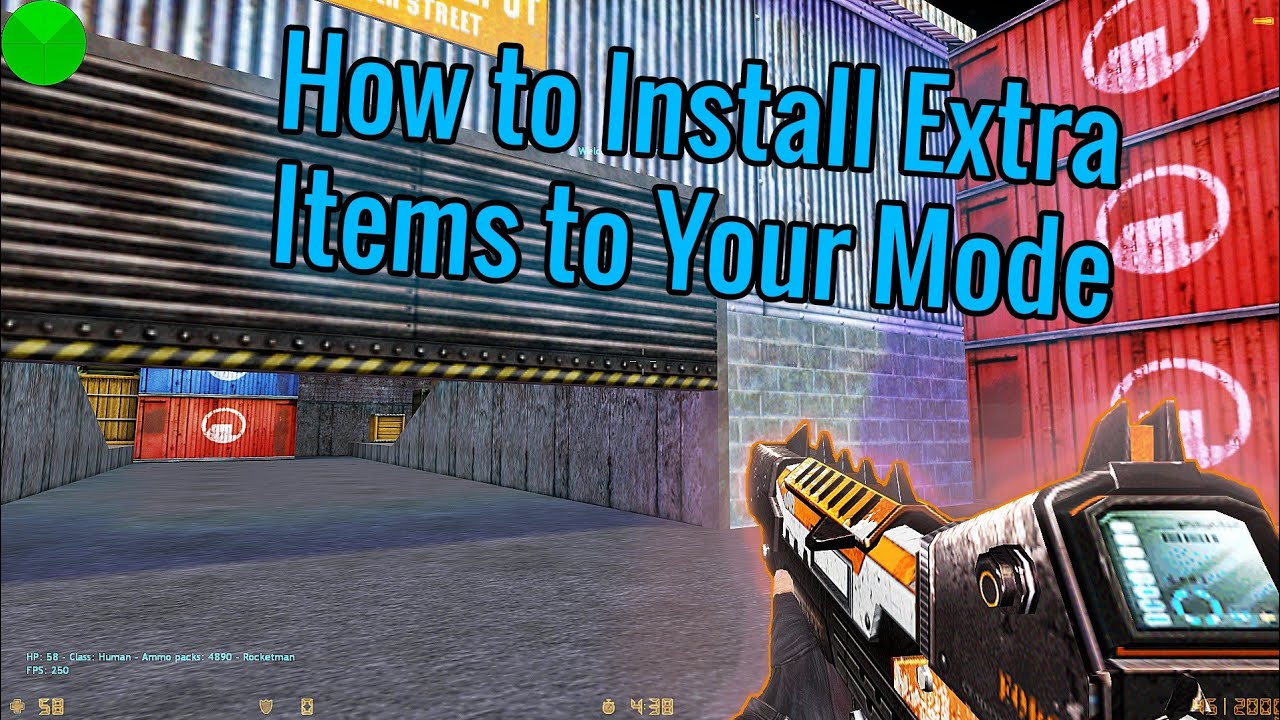
5. Troubleshooting Counter-Strike Mods
If you encounter problems after installing mods, here are some common issues and how to fix them:
- Game Crashes: This can happen if you have conflicting mods or if the mod is not compatible with your current version of Counter-Strike. Disable all mods and enable them one at a time to determine which mod is causing the issue.
- Mods Not Appearing: If the mod is not showing up in the game, ensure it is installed in the correct directory. Also, check that the mod is compatible with the version of Counter-Strike you’re playing.
- Missing Textures or Models: If textures or models are missing, double-check that all files are extracted properly and placed in the correct folders. Some mods require specific game updates, so make sure your game is up to date.
6. External Resources
For more mods, support, or help with installation, check out the following resources:
- GameBanana – Counter-Strike Mods – A popular source for Counter-Strike mods.
- Official Counter-Strike Website – Download official mods and maps.
- ModDB – Counter-Strike – A trusted site for Counter-Strike mods and updates.
7. Conclusion
Modding Counter-Strike can significantly enhance your gameplay experience, from adding new skins to exploring new maps or even changing how the game is played with custom game modes. By following the steps in this guide, you can easily download, install, and manage mods, ensuring your game remains fresh and exciting. Always make sure to back up your game files, use trusted sources, and check compatibility to avoid issues. Have fun modding!
Important Reminder
Always back up your game files before installing mods! Modding can sometimes cause conflicts or errors in your game. By backing up your Counter-Strike installation folder, you can easily restore your original files if something goes wrong. Additionally, always ensure that the mods you download are compatible with your game version to avoid crashes or performance issues.